Introducing Narration Sync: Voiceovers That Fit Your Video
Update, August 13, 2026: the fitting described below originally ran only on renders where you'd edited the script yourself. Freshly generated scripts took a different path that had no timeline placement, so they could still drift — and a separate bug was inflating their length by about a third. Both are fixed: every render now gets timeline placement, and each one is checked before it reaches you. The full story is in Markdown Broke Our Text-to-Speech.
Your polished narration now stays in sync with your video — and you can fix any line in seconds.
That's the short version of what shipped today. If you've ever edited a voiceover script in DemoPolish and watched the new narration drift out of step with what's on screen, this update is for you. We rebuilt how the voiceover gets fitted to your video, and we added the editing controls that make getting it right feel fast and low-risk. We call it Narration Sync, and it's live for every account.
The problem: edited narration used to drift
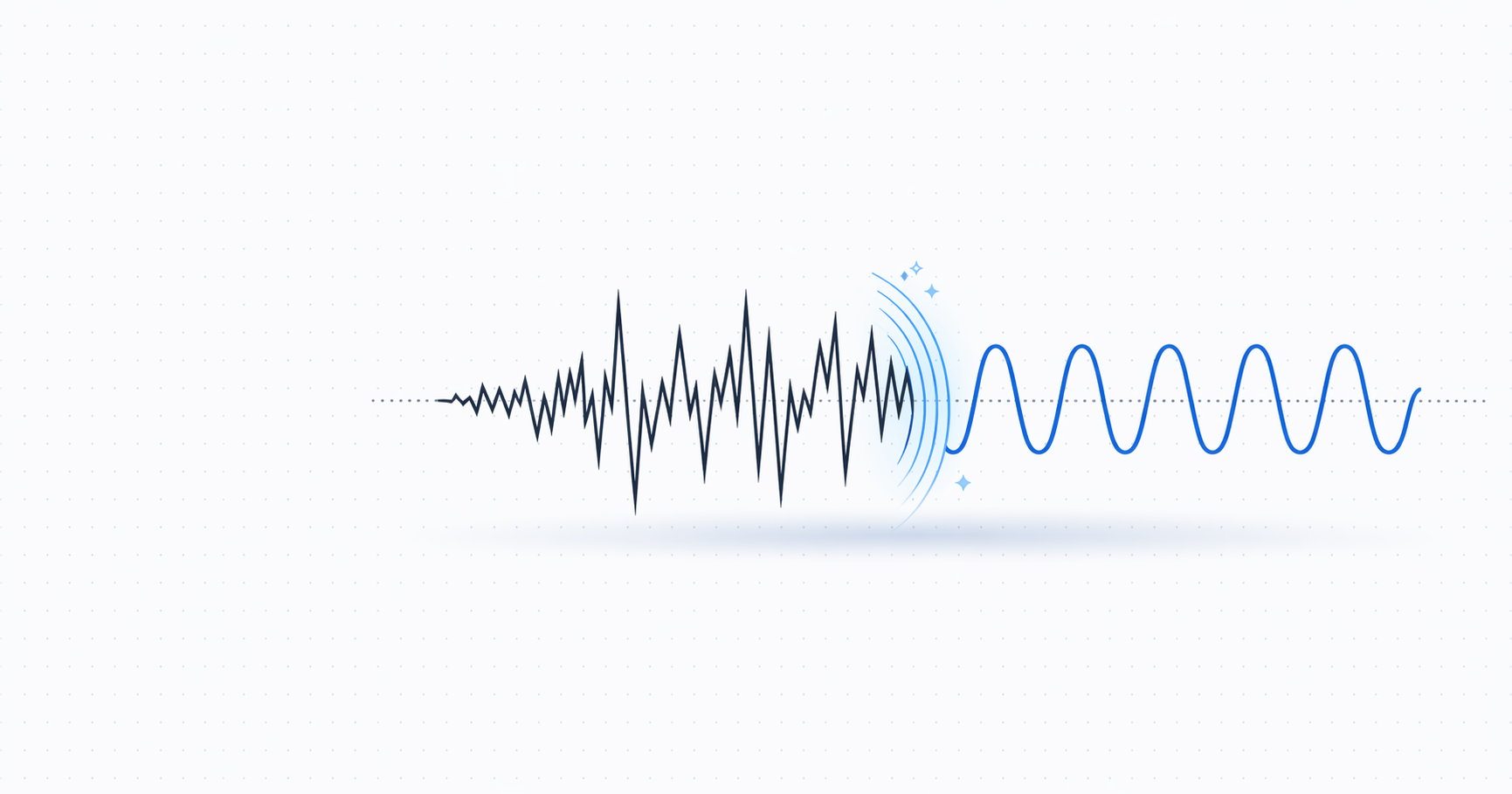
Here's what was happening under the hood. An AI voice doesn't speak at exactly the same pace you did when you recorded. So the moment you edited a line of the rewritten script, the regenerated narration was a slightly different length than the clip it belonged to.
The result was the thing that makes a demo feel amateur: the voice lagging a beat behind the click it's describing, or an awkward silent gap dropped into the middle of a sentence. Instead of narration that tracked the action, you got audio and video that felt like disconnected clips stitched together. And fixing one bad line meant re-rendering the whole video to try again.
We obsessed over this one, because it's the difference between a demo that sounds recorded-for-purpose and one that sounds patched together.
Narration that fits the video, line by line
Narration Sync fits each spoken line into its exact moment in the video. The system follows the on-screen action the way your original recording did — subtly adjusting pacing within a natural range, and keeping whole sentences intact rather than chopping them to hit a mark.
In practice, that means the voice arrives with the click, not after it. The awkward mid-sentence pauses are gone. The voiceover feels like it was recorded for that exact video, because it's been fitted to it — not just generated and dropped on top.
To be clear about what this is: it's screen-demo narration that tracks the action, not lip sync. But the payoff is real — sync is dramatically improved over the old one-length-fits-all approach, and it holds up even after you've edited the script.
See the timing as you type
The script editor used to show you a word count. Useful, but vague — words don't tell you whether a line will actually fit the video.
Now every line shows a live time budget instead. You'll see something like "~6.8s / 7.5s" — how long your edited line will take to speak, against how much room the video gives it. Edit the line and the number updates as you type. If a line runs longer than its slot, it's flagged right there, before you generate anything.
No more surprises in the final render. You can see the fit while you're still writing, which is exactly where you have the most leverage. (If you want the theory behind writing lines that fit, see our demo video script guide.)
Too long? Shorten to fit in one click
When a line does run over its slot, you don't have to sit there trimming words by hand. Click Shorten to fit, and the AI rewrites just that line to land inside its time budget.
It keeps the meaning, the tone, and — importantly — any product names or technical terms exactly as they are. It's not summarizing your line into something generic; it's tightening the same point so it fits. One click, and the flag clears.
Fix one line without re-rendering the whole video
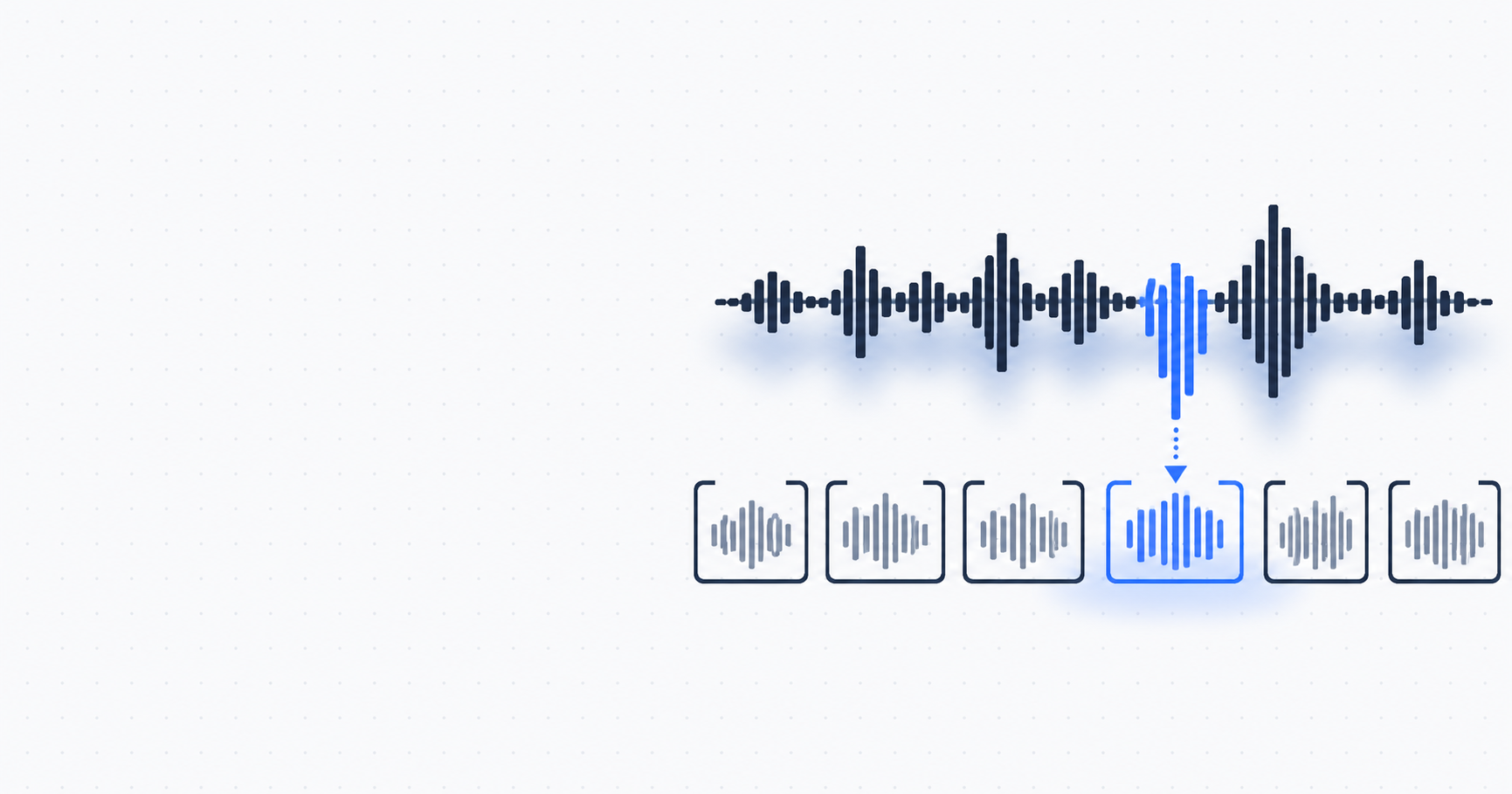
This is the one we're proudest of. Once a video is finished, you can edit a single line and regenerate only that part of the narration.
Everything else is reused instantly. So catching a typo, fixing a mispronounced product name, or rewording one sentence takes seconds — not the time (or cost) of re-rendering the entire demo from scratch. Regenerating one line costs a fraction of a full render.
Each line also carries a status so you always know how it was fitted — "In sync" when it fit its moment as written, "Tightened" when the pacing was nudged to fit. It's the kind of granular control creators expect from a professional editing timeline, except here it's automatic. You edit the words; DemoPolish handles the fit.
Why this matters
The whole promise of DemoPolish is that you turn a rough recording into a shippable demo without a video editor or a re-record marathon. Narration Sync protects that promise at the exact point it used to break — after you make an edit.
You get editorial control over your narration — the right words, the right names, the right pace — and the voiceover stays glued to the action while you exercise it. Fast when you want it. Precise, line by line, when you need it.
Try Narration Sync
It's already on for every DemoPolish account. Upload a recording the way you normally would, edit the script, and you'll see the live timing, the shorten-to-fit button, and the sync status on each line. Finished a video already? Open it, fix a line, and regenerate just that part.
Try it for $3 — start a demo and try the new flow. New to DemoPolish? Here's how AI voiceover works end to end, and how you fix any line in the editor once your video is ready.
FAQ
What is Narration Sync in DemoPolish?
Narration Sync is the system that fits your AI voiceover to the timing of your video. It places each spoken line into its moment on screen — subtly adjusting pacing within a natural range and keeping sentences whole — so the narration follows the on-screen action the way your original recording did, without awkward mid-sentence pauses.
Why did edited AI narration used to drift out of sync?
An AI voice speaks at a different pace than your original recording. So when you edited the script, the regenerated narration no longer matched the length of what was happening on screen — the voice lagged behind clicks, or left silent gaps in the middle of sentences. Narration Sync fixes this by fitting each line to its slot in the video.
Can I fix one line without re-rendering the whole demo?
Yes. After a video is finished, you can edit a single line and regenerate only that part of the narration. Everything else is reused instantly, so fixing a typo or rewording one sentence takes seconds instead of re-rendering the entire video — and costs a fraction as much.
What do the line status labels like "In sync" and "Tightened" mean?
Each line shows how it was fitted to the video. "In sync" means the line fit its moment as written; "Tightened" means the pacing was adjusted slightly to fit. The labels let you see at a glance exactly how each part of your narration was matched to the on-screen action.